
How to Use Prompt Seen AI Trending Photo Prompts
Have you found a photo style you like but are not sure what to write in an AI tool? Prompt Seen shares ready-to-copy photo prompt ideas to help you get started. Browse the Prompt Seen for ideas about portraits, outfits, couples, family photos, and different backgrounds. Choose a prompt that matches your idea, copy it, and use it in an image tool that supports your task. If the tool allows photo uploads, you can add your own picture as a reference. The prompt explains the style you want, while your photo can guide the tool about the person or scene. Results vary between tools, so the finished image may not match every detail exactly. This guide shows how to choose, copy, and use prompts, and how to improve a result when it is not quite right.
How Prompt Seen Fits into AI Photo Creation
Prompt Seen is a website where you can find written prompts and ideas for AI photos. It does not create or edit the final image itself. Instead, you choose a prompt on the website and use it with a separate AI image tool, such as Google Gemini or ChatGPT, if the image features you need are available in your account.
Think of a prompt as an instruction for the image tool. It can describe the subject, clothing, pose, lighting, mood, and background. If you upload a reference photo, the tool may also use it to guide the person or scene, depending on that tool’s features. Copying a prompt from Prompt Seen does not send your photo to our website. You upload your photo directly to the AI service you choose.
Choose a Prompt That Matches Your Idea
Start by deciding what kind of image you want. For girl portraits, outfits, poses, and trending styles, explore Prompt Seen Trending Girl Photo Editing Prompts. A girl photo prompt might describe a portrait, outfit, lighting, or background. You can also look for ideas for a saree portrait, a festive Holi photo, a cartoon look, or an outdoor scene.
For two people, choose a prompt that describes the mood and setting you want. Browse Prompt Seen Couple Photo Prompts for AI Editing for ideas. Other prompts may suit a boy and girl portrait, a family photo, or a father and son image. If you are looking for a particular style, choose the prompt closest to it, such as a boys-style portrait or a cinematic profile picture. Each prompt offers a different starting point, so read it before copying to make sure its details fit your idea.
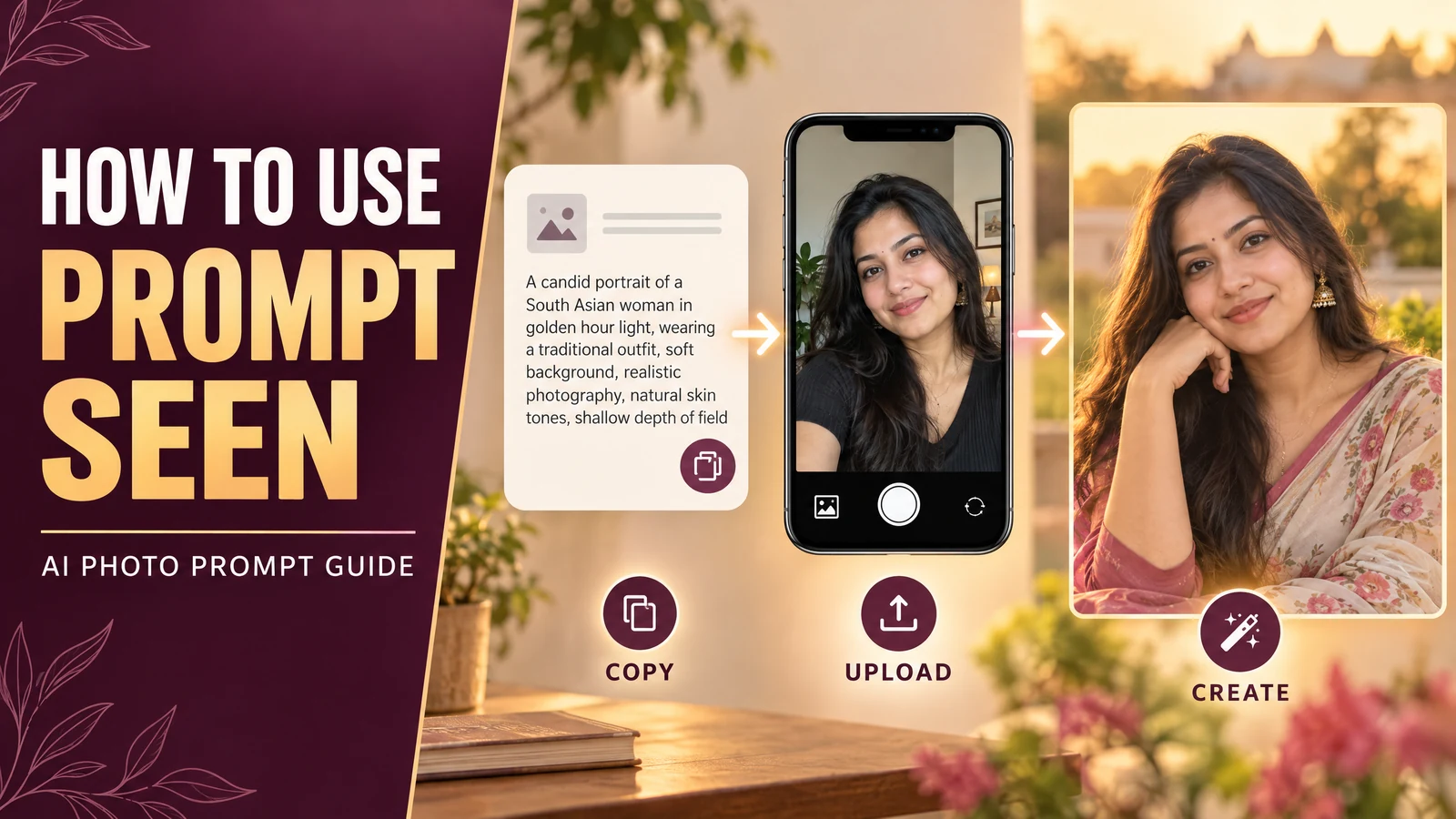
How to Use a Prompt in Gemini or ChatGPT
Use these steps to try a prompt with an image tool:
- Choose a prompt. Browse Prompt Seen and select an idea that fits the photo you want to create.
- Copy the prompt. Use the Copy Prompt button, then open an AI tool that supports the image task you want.
- Upload a reference photo if needed. If the prompt is for editing your own photo and the tool supports uploads, choose a clear picture you have permission to use.
- Paste the prompt. Add the copied text to the tool’s message or prompt box. Keep the instructions about the scene, pose, or identity that matter to your result.
- Generate and review. Send the request, then check the image before saving or sharing it.
Google Gemini and ChatGPT are examples of services people may use for image creation or editing. Their available features can change and may differ by account, country, or app version. If an image option is not available in your account, choose another tool that supports the task. Follow the instructions shown in the service you are using.
Tips for Better AI Photo Results
Use a clear, well-lit photo when you upload a reference image. Make sure the face is visible if you want the tool to use that person as a reference. You can ask the tool to preserve the person’s recognizable features, but no prompt can guarantee that an AI service will keep every detail unchanged.
If the first image is not what you expected, change one detail at a time. For example, ask for softer lighting, a simpler background, or a different outfit while keeping the rest of the idea. Clear instructions about the subject, pose, and setting are often easier to follow than a long list of unrelated effects. Review the face, hands, clothing, and background because AI tools can sometimes alter small details.
Use Photos and AI Tools Responsibly
Only upload photos you own or have permission to use. If another person appears in the photo, ask for their consent before uploading it to an AI service or sharing the edited result. Take extra care with children’s photos and review the AI service’s privacy information before uploading personal images. Each external service has its own rules for handling uploads.
Do not use AI edits to impersonate someone, mislead viewers, or violate another person’s privacy or rights. Before posting an edited image, check that it represents the result responsibly and does not include details you did not intend to share.
The Correct Spelling of Prompt Seen
People sometimes misspell the website name when searching. Common typed variations include “promt seen,” “promat seen,” “promet seen,” “pramot seen,” “promtseen,” and “promet scene.” The correct brand name is Prompt Seen, written as two words. The website address is PromptSeen.cloud. Using the correct spelling helps readers find the right site and distinguish its name from unrelated searches.
Frequently Asked Questions
How do I create a photo using a Prompt Seen prompt?
Choose a prompt on Prompt Seen and copy it. Open an AI image tool that supports your task, upload a reference photo if needed, paste the prompt, and send your request. Review the result and ask for small changes if you want to adjust it.
Can I make a photo directly on Prompt Seen?
Prompt Seen provides photo ideas and written prompts; it does not generate or edit images directly. To create an image, use the copied prompt in a separate AI tool that supports image generation or photo editing.
Can I use Prompt Seen prompts with Gemini or ChatGPT?
You can try the prompts with Google Gemini, ChatGPT, or another suitable AI tool. Image features vary, so check that your account and chosen tool support the type of creation or editing you need.
Do I need to upload my own photo?
No. You can use a text prompt to request a new image if the AI tool supports it. For editing your own photo, upload a clear picture only when the tool supports photo uploads and you have permission to use that image.
Can an AI tool keep my face exactly the same?
You can ask the tool to preserve your identity, but exact results are not guaranteed. AI tools may change facial details, so review the image carefully before using or sharing it.
What should I do if the first result does not look right?
Ask for one specific change at a time, such as softer lighting, a different background, or a more natural pose. You can also try another prompt that better matches the image you want.
Final Thoughts
Prompt Seen helps you find ready-to-use ideas for AI photo creation. Choose a prompt that fits your style, use it in a suitable AI tool, and adjust the details to match your idea. Take time to review the result and use photos responsibly.